User Management
Users on the platform have a role and can have special permissions to manage their access level.
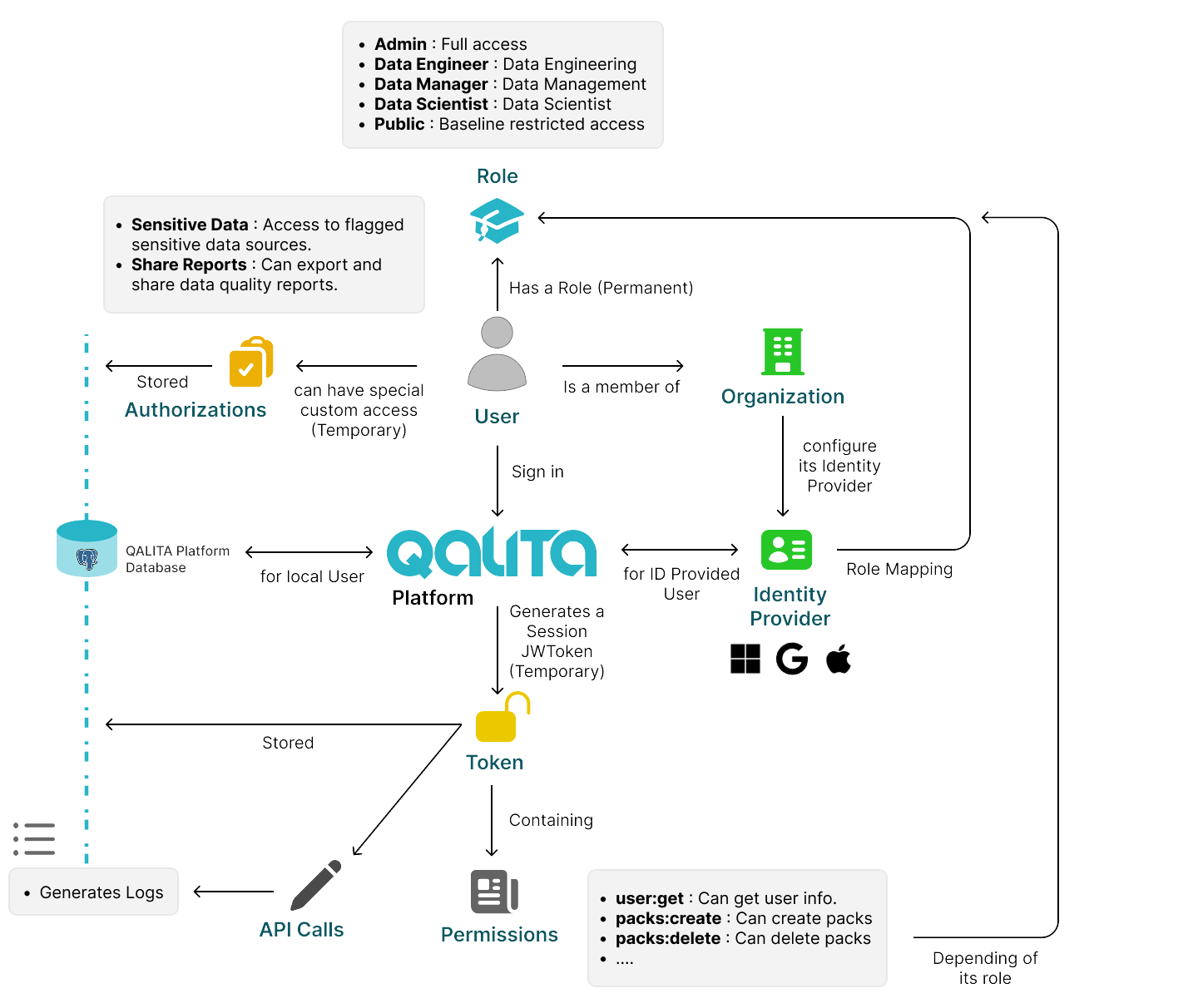
Overall graph on permission and user management
Authentication Modes
QALITA Platform supports the following authentication modes : local, LDAP, OIDC SAML.
A user who joins an existing team gets the role set by QALITA_DEFAULT_ROLE (public when unset), unless an LDAP group mapping gives another role. The user who creates a team becomes its admin.
Local Users
Sign Up
With authentication in table mode, users can directly [Sign Up] from the home page of Platform.
As Admin, Create a User
As administrator, you can also create a local user, go to the Users & Roles section in the Settings menu.
Reset a Password
A local user can ask for a password reset link from the sign-in page, and an administrator can send one from Settings > Users & Roles. The link is valid for 10 minutes and works once. Since platform 3.2.2:
- the reset page checks the link with
POST /api/v1/auth/resetPassword/verifybefore showing the form, and the new password is set withPOST /api/v1/auth/resetPassword; - setting the new password consumes the link and revokes every token of the user: web sessions and API tokens, including the ones of their workers;
PUT /api/v1/auth/sendResetPassword/email/{email}always answers200, whether an account uses this address or not.
Only local accounts have a password: Microsoft, Google and Apple accounts cannot sign in with a password, nor reset or change one (see Passwords of SSO accounts).
LDAP Registry
Users can authenticate with a password and email. This authentication can be configured to work with a corporate directory using the LDAP protocol.
Configure LDAP
To configure LDAP authentication, you need to add environment variables to the Backend.
QALITA_AUTH_MODE: Specify the authentication modeldapLDAP_SERVER: LDAP server addressldap://openldap:389LDAP_DN: Base DN for user searchdc=example,dc=orgLDAP_TLS: Enable TLSfalseLDAP_SEARCH_USER: Search usercn=admin,dc=example,dc=orgLDAP_SEARCH_PASSWORD: Search user passwordadminpasswordLDAP_SEARCH_USER_FILTER: User search filter(&(objectClass=person)(uid=%s))LDAP_GROUP_DN(optional): Base DN for group searchou=groups,dc=example,dc=org,LDAP_DNwhen unsetLDAP_SEARCH_GROUP_FILTER: Group search filter(&(objectClass=posixGroup)(memberUid=%s))LDAP_ROLE_MAPPING: Role mappingadmin:cn=direction,dc=qalita,dc=io;dataengineer:cn=factory,dc=qalita,dc=io;datamanager:cn=conseil,dc=qalita,dc=io
LDAP role mapping
LDAP_ROLE_MAPPING maps directory groups to platform roles. It is a list of role:group_dn entries separated by ;, not JSON:
LDAP_ROLE_MAPPING="admin:cn=direction,ou=groups,dc=example,dc=org;dataengineer:cn=factory,ou=groups,dc=example,dc=org;public:cn=staff,ou=groups,dc=example,dc=org"
;separates the entries, so a group DN cannot contain one. In an entry, what follows the first:is the group DN.- Role names match in any case (
Adminisadmin). An entry whose role does not exist is ignored, with a warning in the backend log. - Group DNs match in any case, and spaces around commas are ignored.
- Quotes around the whole value, as some
.envfiles and Helm values keep them, are removed. - A group declared twice keeps its first entry.
A user in several mapped groups gets the most privileged role, whatever the order of the entries: admin, then dataengineer, datamanager, datascientist and partner, then the roles created by an administrator in the order of their entries, then public. A broad group mapped to public therefore never hides another mapped role. A user in no mapped group gets QALITA_DEFAULT_ROLE.
LDAP group lookup
At each sign-in, the backend reads the groups of the user in two ways and combines them:
- the
memberOfattribute of the user entry (Active Directory, or OpenLDAP with thememberofoverlay), which the backend requests explicitly; - a search with
LDAP_SEARCH_GROUP_FILTERunderLDAP_GROUP_DN, or underLDAP_DNwhenLDAP_GROUP_DNis unset.
LDAP_SEARCH_GROUP_FILTER accepts these placeholders. Their values are escaped (RFC 4515) before the search.
| Placeholder | Replaced by |
|---|---|
%s or {uid} | The value of the first RDN of the user DN: alice for uid=alice,ou=people,dc=example,dc=org |
{dn} | The full user DN |
%% | A literal % |
| Directory | LDAP_SEARCH_GROUP_FILTER |
|---|---|
OpenLDAP, posixGroup | (&(objectClass=posixGroup)(memberUid=%s)) |
OpenLDAP, groupOfNames | (&(objectClass=groupOfNames)(member={dn})) |
OpenLDAP, groupOfUniqueNames | (&(objectClass=groupOfUniqueNames)(uniqueMember={dn})) |
| Active Directory | (&(objectClass=group)(member={dn})) |
| Active Directory, nested groups | (&(objectClass=group)(member:1.2.840.113556.1.4.1941:={dn})) |
LDAP_SEARCH_USER_FILTER takes the login: it must contain exactly one %s and no other % than %%.
LDAP errors
| Situation at sign-in | Result |
|---|---|
| None of the user's groups is mapped | The user gets QALITA_DEFAULT_ROLE |
| The group lookup fails: the search account cannot bind again, the user entry cannot be read, or the group search fails | An existing user signs in and keeps their current role. A user signing in for the first time gets 503 and no account is created. |
| The directory cannot be reached, or the user search or the user bind fails | 503 "LDAP directory unavailable, retry later." |
| A setting is missing or wrong: user or group filter missing or not a valid LDAP filter, search account missing or refused by the directory | 500 "LDAP configuration error: <reason> Contact your administrator." |
A directory failure never demotes a user. When QALITA_AUTH_MODE is ldap, the backend also checks the LDAP settings at startup and logs each problem as LDAP configuration: ..., without blocking the start: missing settings, a user filter without exactly one %s, a group filter without placeholder or with several %s, a mapping that looks like JSON, malformed entries, roles that do not exist and groups declared twice.
Role managed by LDAP or forced
At each sign-in, an LDAP account gets the role of its groups, unless an administrator forced a role. In ldap mode, Settings > Users & Roles shows for each account synced by LDAP:
- Managed by LDAP: the role follows the directory groups;
- Forced by an administrator: an administrator chose the role, and LDAP no longer changes it.
Choosing a role in the role menu forces it; choosing the role the user already has changes nothing. Give the role back to LDAP removes the forced role: the role of the groups applies at the user's next sign-in. The user who creates a team gets admin as a forced role: give it back to LDAP to apply the mapping. The local admin account never signs in through LDAP and shows neither label.
When a sign-in changes the role of an LDAP account, every other token of the user is revoked, web sessions and API tokens, as when an administrator changes the role. Workers that run with the user's API token need a new one.
Microsoft Authentication (OIDC/SAML)
Users can authenticate with Microsoft Entra ID.
Configure Microsoft (Azure Entra) OIDC
To configure Microsoft (OIDC) authentication, you need to add environment variables to the Backend.
QALITA_AUTH_MODE: Specify the authentication modesamlMICROSOFT_CLIENT_ID: Application client IDMICROSOFT_CLIENT_SECRET: Application client secretMICROSOFT_TENANT_ID: Application tenant ID (a tenant ID or domain;common,organizationsorconsumersmake the application multi-tenant, see Accounts and identities)MICROSOFT_REDIRECT_URL: Application redirect URLhttps://api.<qalita-domain>/api/v1/auth/saml/callback, see Redirect URLsMICROSOFT_SCOPES:openid profile email https://graph.microsoft.com/User.Read
To create an application in Azure Active Directory (Azure AD) and configure SAML authentication for your platform, follow these steps to set up Single Sign-On (SSO) for your application using Azure AD as the identity provider.
1. Access the Azure Portal
- Log in to the Azure Portal with your administrator account.
2. Navigate to Azure Active Directory
- In the Azure Portal sidebar menu, select "Azure Active Directory" to access your Azure AD directory.
3. Register a New Application
- Go to the "App registrations" section.
- Click "New registration" to start creating a new application.
- Name your application, select the supported account types, and specify the redirect URL (callback) used after OIDC authentication. This URL should match
MICROSOFT_REDIRECT_URLyou will configure later in your environment variables.
4. Verify Authorized APIs
- Once the application is created, access it in the Azure Portal.
- In the application menu, find the "API permissions" section.
- Click "Add a permission" > "Microsoft Graph" > "Delegated permissions" > search for
User.Readand [Add permission].
5. Create an Application Secret
- Go to the "Certificates & secrets" section of your application.
- Click "New client secret" to create a new application secret. You will need this secret to configure Microsoft (OIDC) authentication in your platform.
- Use the value to configure the environment variable
MICROSOFT_CLIENT_SECRET.
6. Retrieve Application Details
- After configuring OIDC, retrieve the following information for your environment variables:
- Client ID (
MICROSOFT_CLIENT_ID): Found in the application's "Overview" section. - Client Secret (
MICROSOFT_CLIENT_SECRET): Create a secret in the "Certificates & secrets" section. - Tenant ID (
MICROSOFT_TENANT_ID): Visible in your Azure Active Directory "Overview".
- Client ID (
7. Configure Environment Variables
- On your server or development environment, configure the environment variables you retrieved in the previous step.
8. Test SAML Authentication
- Test SAML authentication to ensure everything is correctly configured and users can log in to your application via Azure AD.
By following these steps, you will have created an application in Azure AD, configured SAML authentication, and prepared your platform to use Azure AD as the identity provider for SSO authentication.
Note: The backend automatically exposes Microsoft/Google buttons on /signin when config is present (/api/v1/info).
Sign-in with Microsoft, Google or Apple
The Microsoft button is shown when QALITA_AUTH_MODE is saml. The Google and Apple buttons are shown when their client ID and redirect URL are set, whatever the mode. The frontend gets the URL of each button from /api/v1/info.
How a sign-in works
- The button leads to the backend:
GET /api/v1/auth/saml/login(Microsoft),GET /api/v1/auth/google/loginorGET /api/v1/auth/apple/login. It answers404when the provider is not configured. - The backend draws a random
stateandnonce, keeps them in theqalita_sso_statecookie and redirects the browser to the provider. The cookie is signed withQALITA_SECRET_KEY,HttpOnly,SameSite=Lax, valid 10 minutes, andSecurewhen the redirect URL ishttps. - The provider sends the browser back to the redirect URL,
.../api/v1/auth/<provider>/callback. The backend accepts the answer only when the browser sends the cookie back with the samestate, and the ID token only when it carries the samenonce(for Google and Apple, also the expected issuer, audience and expiry). Every answer of the callback clears the cookie, so a callback URL works once. - The backend redirects the browser to
<QALITA_PUBLIC_PLATFORM_URL>/en/signin/callback, which opens the session.
A sign-in must therefore start and end in the same browser, within 10 minutes. Microsoft always gets the openid and profile scopes, and Google the openid scope, in addition to the configured scopes: the backend needs the ID token.
Redirect URLs
MICROSOFT_REDIRECT_URL, GOOGLE_OAUTH_REDIRECT_URL and APPLE_OAUTH_REDIRECT_URL are the callbacks registered with each provider. Each one must be an address of the backend that the browser reaches, ending with /<provider>/callback: https://api.<qalita-domain>/api/v1/auth/saml/callback, .../google/callback or .../apple/callback.
- The login URL of the button is the redirect URL with
/callbackreplaced by/login, on the same host, so the browser sends the cookie back to the callback. Behind a reverse proxy that publishes the API under a path prefix, the cookie path follows that prefix (/<prefix>/api/v1/auth). - When a redirect URL does not end with
/<provider>/callback, the login URL is<QALITA_PUBLIC_API_URL>/api/v1/auth/<provider>/loginand the cookie path is/.QALITA_PUBLIC_API_URLmust then be the API URL the browser reaches (never an internal address such ashttp://backend:3080), on the same host as the redirect URL. Otherwise every sign-in fails withsso_state.
The Helm chart sets QALITA_PUBLIC_API_URL to https://api.<cluster.domain> and QALITA_PUBLIC_PLATFORM_URL to https://<cluster.domain>. It sets none of the SSO variables: pass them through backend.deployment.extraEnv. Docker Compose defaults to http://localhost:3080 for the API and to http://localhost:3080/api/v1/auth/saml/callback and .../google/callback for the redirect URLs.
Accounts and identities
An SSO account is identified by the immutable identifier the provider gives, stored in users.external_id, and never by its e-mail address alone:
| Provider | external_id |
|---|---|
| Microsoft | microsoft:<tid>:<oid>: tenant ID and object ID from the ID token, in lower case |
google:<sub> | |
| Apple | apple:<sub> |
At each sign-in, the backend looks for:
- the account holding this
external_id, which signs in; - otherwise, an account whose login is the e-mail address given by the provider (in lower case), handled as in the table below;
- otherwise, it creates a new account, with the e-mail address as login, or the
external_idwhen the provider gives no address.
| Account found by its login | Microsoft, single-tenant application | Microsoft, multi-tenant application | Google or Apple |
|---|---|---|---|
| Account of the same provider created before identifiers were stored | Linked: it gets the external_id | Refused: account_exists | Linked |
| Local account, or account created before account types existed | Linked, and stays local: its password still works | Refused: account_exists | Refused: account_exists |
| LDAP account, or account of another provider | Refused: account_exists | Refused: account_exists | Refused: account_exists |
| Account of the same provider already linked to another identity | A new account is created, with the external_id as login | Same | Same |
The Microsoft application is multi-tenant when MICROSOFT_TENANT_ID is common, organizations, consumers or empty: any tenant can then set the e-mail address of an account, so it is never used to link one. Google requires an address it has verified, and Apple may withhold the address but an address it gives must be verified: otherwise the sign-in is refused with email_not_verified, unless the account is already linked.
A refused sign-in is logged by the backend with the external_id (SSO: ... sign-in refused for ...). To let in a user whose existing account cannot be linked, for example on a multi-tenant Microsoft application, an administrator sets that external_id on the account in the database:
UPDATE users SET external_id = 'microsoft:<tid>:<oid>' WHERE id = <user id>;
Sign-in errors
A refused sign-in leads to /en/signin/callback?error=<code>, which shows a message and a link back to the sign-in page:
error | Cause |
|---|---|
sso_state | The cookie is missing, expired or for another provider, or its state differs: sign-in started in another browser, took more than 10 minutes, or the callback was opened twice. Also when the login URL and the redirect URL are on different hosts. |
sso_failed | The ID token was refused: wrong nonce, issuer, audience or expiry, or no identifier. |
account_exists | The e-mail address is the login of another account that this sign-in may not take over (see Accounts and identities). |
email_not_verified | Google or Apple has not verified the e-mail address. |
Passwords of SSO accounts
Microsoft, Google and Apple accounts have no password on the platform: password sign-in, reset and change are for local accounts only.
- A password sign-in (
POST /api/v1/auth/signin) on such an account answers401"Wrong password", as for a wrong password. - The reset request of the sign-in page answers
200and sends nothing. The administrator's reset request (PUT /api/v1/auth/sendResetPassword/{id}) answers400, and a reset link is refused as invalid. - Setting a password with
PUT /api/v1/users/{id}answers400.
The same applies to LDAP accounts when the platform runs in table mode. In ldap mode, LDAP accounts sign in through the directory as before.
Before this change, accounts created by Microsoft, Google or Apple could also sign in with a password: their own e-mail address. The upgrade migration r20261115_user_external_id replaces the password of these accounts with an unusable value and deletes their tokens: their users are signed out once and sign in again through their provider. It does the same for older accounts without account type whose password is their own login or e-mail address (Microsoft accounts created between February 2024 and January 2025); they keep their type and can set a password with a reset link.
To check whether these passwords were used, look in the user logs for users/signin entries with the response HTTP_200_OK on Microsoft, Google and Apple accounts: a sign-in through the provider never writes that entry.
JWT Token Authentication
Users can authenticate with an API token (for the backend), they have backend endpoint access relative to their user role.
To get your JWT API Token, you first need to authenticate to the platform, then go to your Profile page and then to the API Token section.
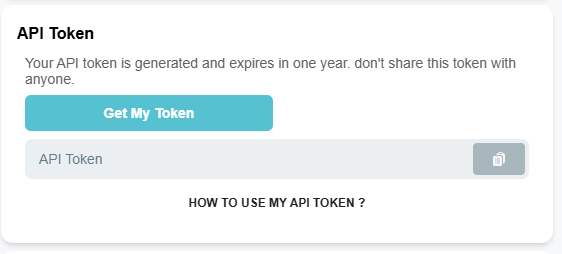
User API Token
Get my token shows your current API token, or creates one when you have none that is still valid or when your role changed since it was issued (the previous one then stops working). Regenerate my token replaces it: every previous API token of your account stops working at once. The Expiration date shown next to the token is the one the backend enforces; the "expires in one year" text of the page only holds with the Helm chart default below.
Token lifetime
| Token | Lifetime set by | Default |
|---|---|---|
| API token (CLI, workers, scripts) | QALITA_API_TOKEN_EXPIRE_MINUTES | 10080 (7 days) when unset, as with Docker Compose. The Helm chart sets 525600 (1 year): backend.APItokenExpireMinutes. |
| Session token (sign-in to the web interface) | QALITA_ACCESS_TOKEN_EXPIRE_MINUTES | 15 when unset. 240 (4 hours) with Docker Compose (.env.example) and the Helm chart (backend.AUTHTokenExpireMinutes). |
Since platform 3.2.2, the backend checks every token it receives, on the REST API (v1 and v2), the workers' gRPC connection, the live logs WebSocket and the web session: its signature, its expiration date, its purpose (a password reset link is never accepted as an access token), and that this exact token is still stored for the user and not expired. Before 3.2.2, the expiration date was not checked. Give workers an API token, never a session token, and size QALITA_API_TOKEN_EXPIRE_MINUTES so that their token does not expire unnoticed.
The permissions of a request are read from the user's current role at each request, not from the token.
Token revocation
A token stops working before its expiration date when it is deleted. The API, the CLI and every worker that use it are then refused. This happens when:
| Event | Tokens revoked |
|---|---|
| The user clicks Regenerate my token | Every previous API token of the user |
| The user's password is changed (by the user or an administrator), or reset with a reset link | Every token of the user: web sessions and API tokens |
| An administrator changes the user's role or habilitations | Every token of the user: web sessions and API tokens |
| An administrator gives the role back to LDAP | Every token of the user: web sessions and API tokens |
| An LDAP sign-in gives the user another role | Every other token of the user: web sessions and API tokens |
| The user is removed from the team, or leaves it | Every token of the user: web sessions and API tokens |
After a revocation, the user signs in again, gets a new API token from the API Token section of the Profile page and updates the workers that used the old one (see Worker Blocked or Offline).
Default role when joining a team
The backend variable QALITA_DEFAULT_ROLE sets the role a user gets when joining an existing team from the onboarding screen.
Allowed values are public (the default), datascientist, datamanager and dataengineer. admin, partner and any other value are refused: the backend logs an error and uses public. The backend logs the effective role at startup: Users joining a team get the role '<role>' (QALITA_DEFAULT_ROLE).
| Situation | Role given |
|---|---|
| The user creates a team | admin |
| Account that left a team after an administrator set its role | public |
LDAP account, one of its groups is in LDAP_ROLE_MAPPING | The most privileged mapped role (LDAP role mapping) |
LDAP account, none of its groups is in LDAP_ROLE_MAPPING | QALITA_DEFAULT_ROLE |
| Local, Microsoft, Google or Apple account joining a team | QALITA_DEFAULT_ROLE |
Docker Compose
Set the variable in the .env file next to docker-compose.yaml:
QALITA_DEFAULT_ROLE=datascientist
Then recreate the backend container:
docker compose up -d backend
Helm
Pass the variable through backend.deployment.extraEnv:
backend:
  deployment:
    extraEnv:
      - name: QALITA_DEFAULT_ROLE
        value: datascientist
When the default role applies
- Local and SSO (Microsoft, Google, Apple) accounts get it when they join a team.
- LDAP accounts get it at each sign-in when none of their groups is mapped, so LDAP members without a mapped group pick it up at their next sign-in. An explicit mapping always wins over the default role, even a mapping to
public. - Existing local and SSO members keep their current role: change it in Settings > Users & Roles.
- A role set by an administrator is kept at the next sign-ins (see Role managed by LDAP or forced).
- Leaving a team, or being removed from it, resets the role to
public. If an administrator had set the user's role, that choice is kept: the user joins a team again aspublic, not withQALITA_DEFAULT_ROLEor the LDAP-mapped role, so leaving and joining again never undoes a demotion. An administrator then sets the role again in Settings > Users & Roles. Other users join again withQALITA_DEFAULT_ROLE, or with their mapped role for LDAP accounts. - If the LDAP group lookup fails during a sign-in, an existing user keeps their current role and a new user is refused: the default role is never given because of a directory failure (see LDAP errors).
Any account able to sign in can join any team listed on the onboarding screen and receives this role. On an instance with several local teams, the role applies to all of them. Keep public unless sign-in is restricted to your own staff.
Removing a member does not stop them from joining a team again: they can sign in and join at once. The platform has no setting to deactivate an account, and an administrator cannot change an account once it has left the team. To keep someone out, disable their account in your LDAP directory or identity provider. With local accounts, removal alone cannot keep a person out.
See Environment Variables for the other backend variables.
Roles
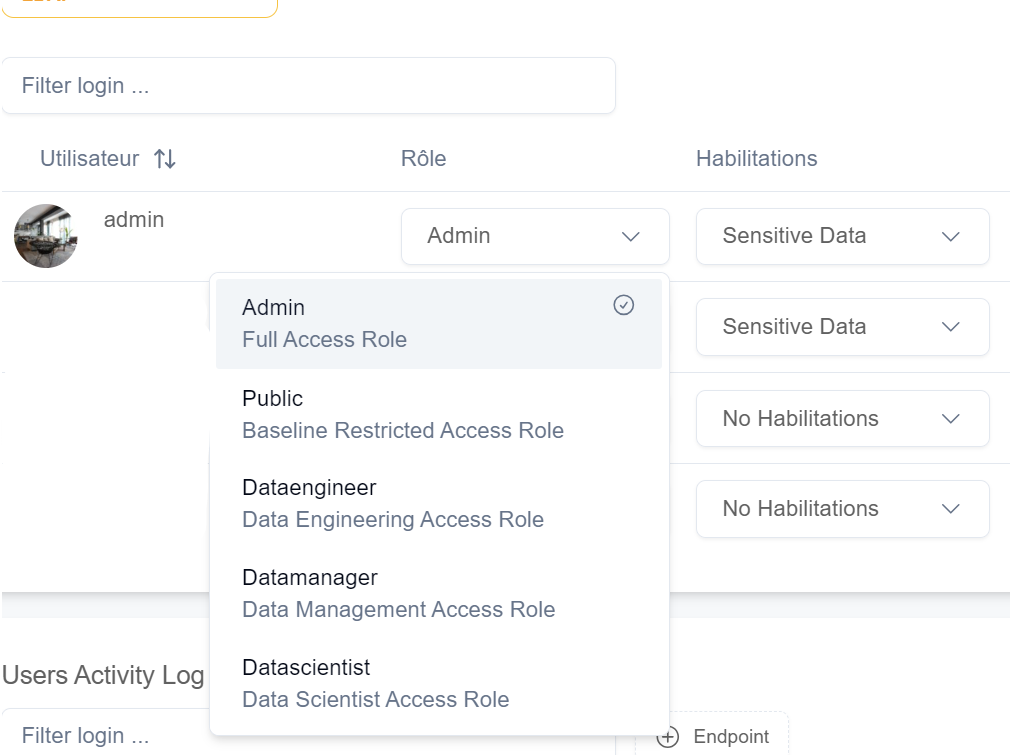
There are different roles in QALITA Platform that allow discrimination of possible actions and access rights.
| Role | Description | Permissions |
|---|---|---|
| Admin | The administrator role gives access to all platform features. | All |
| Dataengineer | The data engineer role has access to most platform features, except settings and data science. | Agents - Packs - Sources - Projects - Reports - Issues - Catalog |
| Datamanager | The data manager role has access to project, report, and ticket features. | Sources - Projects - Reports - Issues - Catalog |
| Datascientist | The data scientist role has access to catalog, report, and data science features. | Reports only with token - Catalog - Synthetic Data - Model Evaluation |
| Public | The public role has minimal access to platform features. | Profile - Notifications - Reports only with token |
A role opens features, not sources: every role, administrators included, reads a source and the data derived from it only under the source access rules.
Permissions
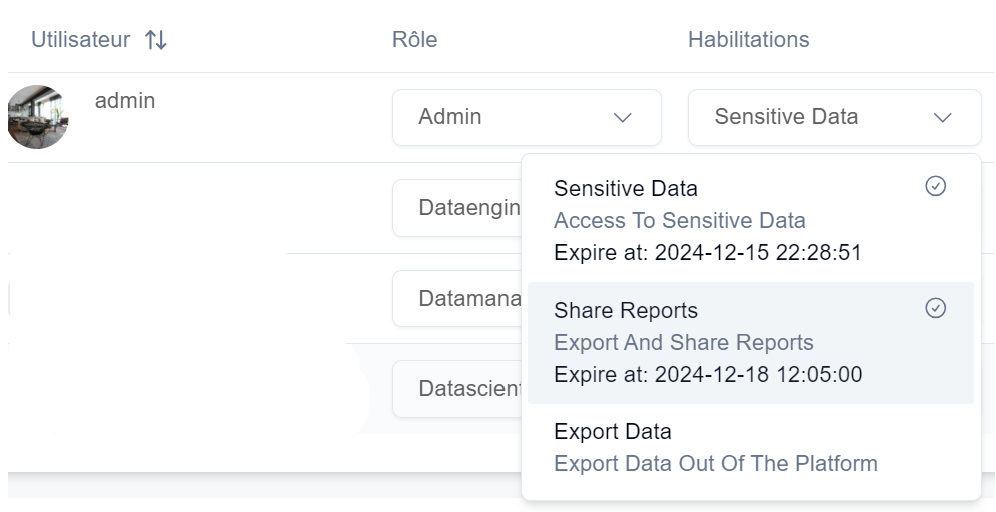
There are different permissions in QALITA Platform that allow granting rights for specific actions.
All permissions have a default lifetime of 1 year. They can be revoked at any time by simply clicking again on the permission in the user's permission list.
| Permission | Description | Authorizations |
|---|---|---|
| Sensitive Data | The Sensitive Data permission allows access to sensitive data. | Sensitive Data |
| Share report | The Share report permission allows sharing reports. | Report Sharing |
Invite users to your team
A user who signs in for the first time and belongs to no team lands on the onboarding screen, where they create a team or join an existing one. An invitation link takes them straight to your team, so they do not need to know its name.
Generate a link
- Go to Settings > Users & Roles and click Invitation link. Only administrators can generate links.
- Choose how long the link stays valid: 1 day, 7 days (default) or 30 days.
- Click Generate link, then copy the link and its expiry date, and share it yourself (e-mail, chat…). The platform does not send it.
The link always leads to the team of the administrator who generated it. Each generation is recorded in the user logs.
Anyone who holds the link can join your team until it expires. Share it only through a trusted channel and prefer a short validity.
Join with a link
- The invitee opens the link. If they are not signed in yet, they sign in or sign up first (local account, LDAP or SSO). Meanwhile the browser keeps the invitation for up to 24 hours; signing out forgets it.
- The first onboarding step shows the invited team with a Join the team button. One click attaches them to the team. They can also dismiss the invitation and create or join another team instead.
The new member gets the default role of anyone who joins a team, never a role chosen by the link: see the note under Authentication Modes and the Roles table. LDAP accounts keep the role mapped from their directory groups. An administrator can change the role afterwards from the users list.
A user who already belongs to a team cannot use an invitation: a team cannot be changed after joining.
Expiry and revocation
A link stops working when it expires, or when the team it leads to is deleted. A single link cannot be revoked before its expiry. To invalidate every link at once, change the backend secret key QALITA_SECRET_KEY (see Environment variables): this also signs every user out.
Deleting a user
Deleting a user is refused while that user owns a source declared with the user access modality — a source whose database credentials are that person's own.
Reassign or delete their nominative sources first, then delete the account. The platform blocks the deletion rather than unbinding the source, because a nominative source left without its owner would still be reachable through the Worker that holds the credentials, with nobody accountable for them.
User Logs
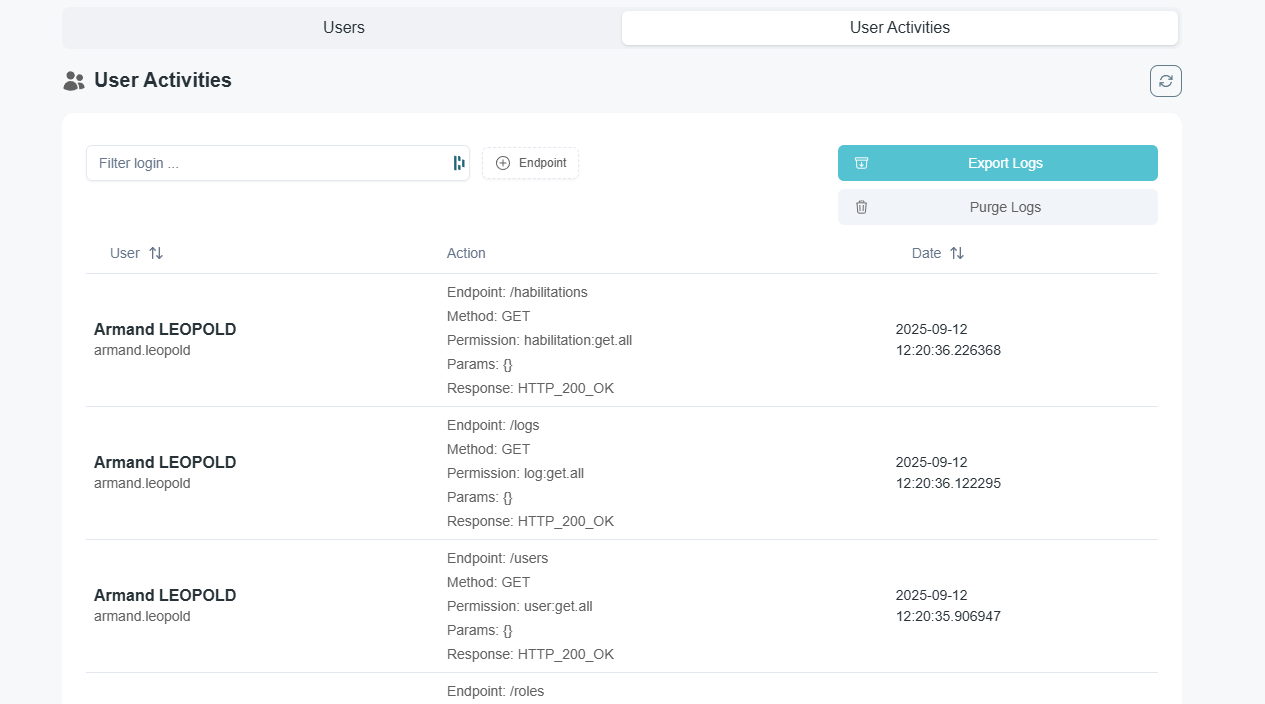
Any actions made by any user is recorded in the logs table on the backend database.
User with admin roles can check latest logs and export them directly from the platform at [Settings] > [Users & Roles] > [Users Activities]
To know more about security, see the Security & Compliance page.